Getting Help With Research
Frequently Asked Questions
How is my data kept private and secure? Your data is handled in compliance with HIPAA. All data is encrypted in transit and at rest.
How are peers defined in the peer comparison view? Peers are physicians in your specialty and region. Training level and job setting are used when data is available.
What is the difference between Research and Spotlights? Spotlights highlight specific data points where you stand out in a particular metric. Research surfaces broader patterns found in real-world data.
How do I give feedback on Research? Each Research card includes a feedback option. You can flag an Research as incorrect, unclear, or not relevant. All feedback is reviewed and used to improve Research quality.
How do I know if a Research card is based on sufficient data? Each Research card includes a deep-dive view that shows the study design, key findings, background information, supporting evidence, limitations, follow-ups, and references.
Common Issues
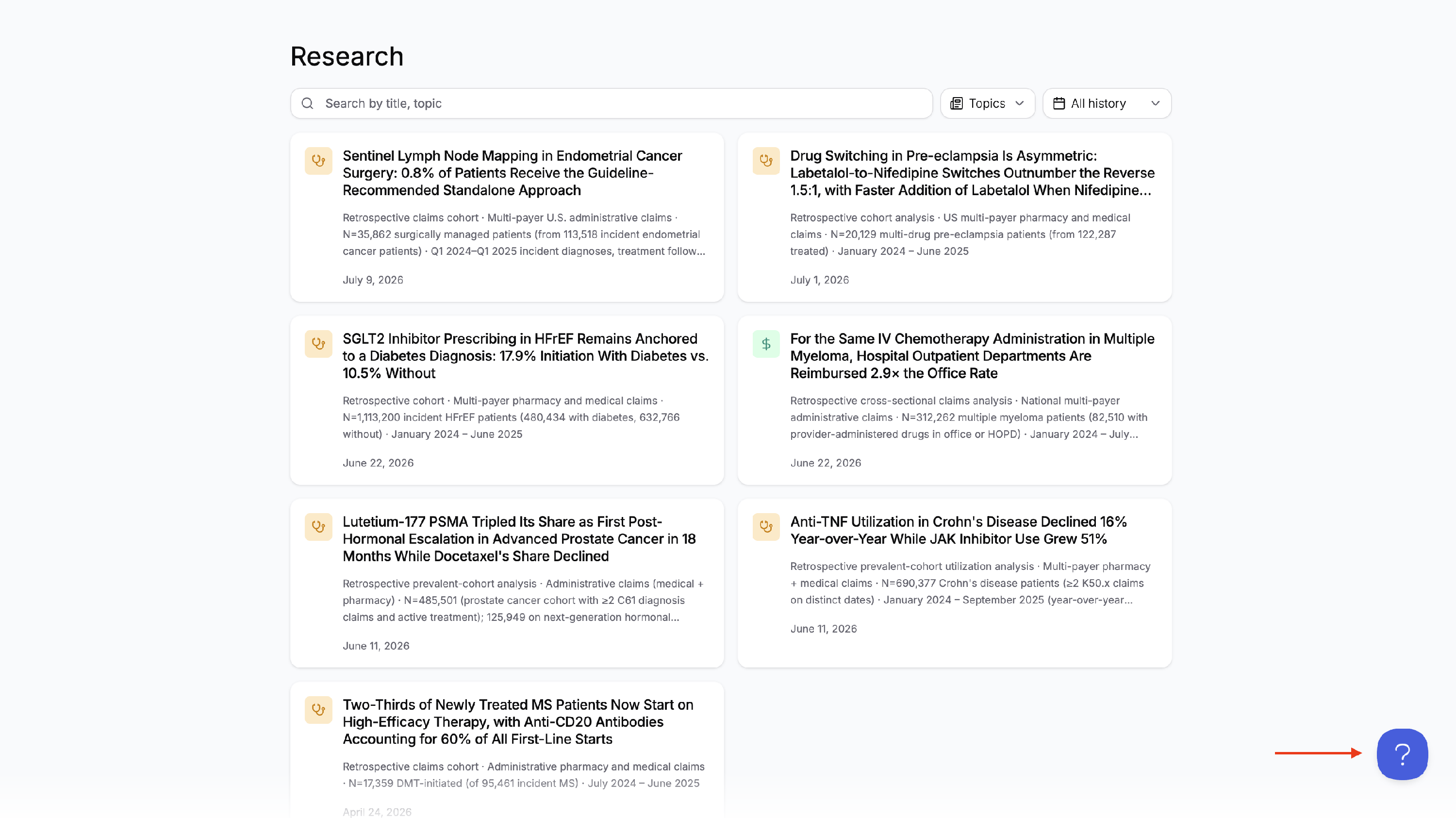
Research tab is empty The Research pipeline initializes at sign-up and may take a few minutes to generate your first findings. If the tab remains empty after 24 hours, contact support via the help button.
A Research card appears incorrect Select the thumbs down icon on a Research card to flag it. While optional, written comments and category selection increase the usefulness of your feedback. Your feedback is reviewed to improve Research quality.
Research has not updated recently. New Research articles are surfaced at least once a week. If your feed has not updated in more than two weeks, contact support.
Contact Support
If an issue persists after following the steps above, use the help button or contact support via support@jirohealth.com. To access the help button on iOS, click the “More” tab in the bottom right corner of the app, and click “Get help”.